Pixmage AI Image & Video Studio for Faster Visual Work

Clean up photos, generate original images, or turn words and still frames into AI video. Pixmage shows the selected model and exact credit charge before processing, so you always know what you are paying for.
Two complimentary cleanup runs · Images up to 15MB · Model and credit cost shown before image or video generation

Remove the background in one click

After
Before
BeforeAfter
Example · Before / after
  • Google Gemini
  • OpenAI
  • Seedream
  • FAL
  • Volcengine
  • Cloudflare
  • Vercel
  • Stripe
  • PayPal
  • Visa
  • Mastercard
  • American Express
New in Pixmage

AI video generation with no hidden model

Turn a prompt or start image into a 720p or 1080p clip. Pixmage shows the actual model, duration, audio behavior, and total credits before you generate.

Image or text input Optional native audio

Kling 3 Standard

720p

Fast cinematic video with optional native audio.

5s · no audio25 credits
Kling 3 Pro

1080p

Higher-detail cinematic output with optional native audio.

5s · no audio30 credits

Veo 3.1 Fast

1080p

Cinematic video with strong prompt following and synchronized audio.

8s · no audio40 credits

Seedance 2 Fast

720p

Director-style motion, multi-shot pacing, and audio at one flat rate.

5s · no audio65 credits

Wan 2.6

720p

Cost-efficient multi-shot video with coherent subjects and prompt expansion.

5s · no audio25 credits
Result examples

Create, refine, and transform images with Pixmage

Explore Pixmage cleanup, text-to-image generation, and image-to-image effects. Drag each comparison to inspect the change, then open the matching workspace.
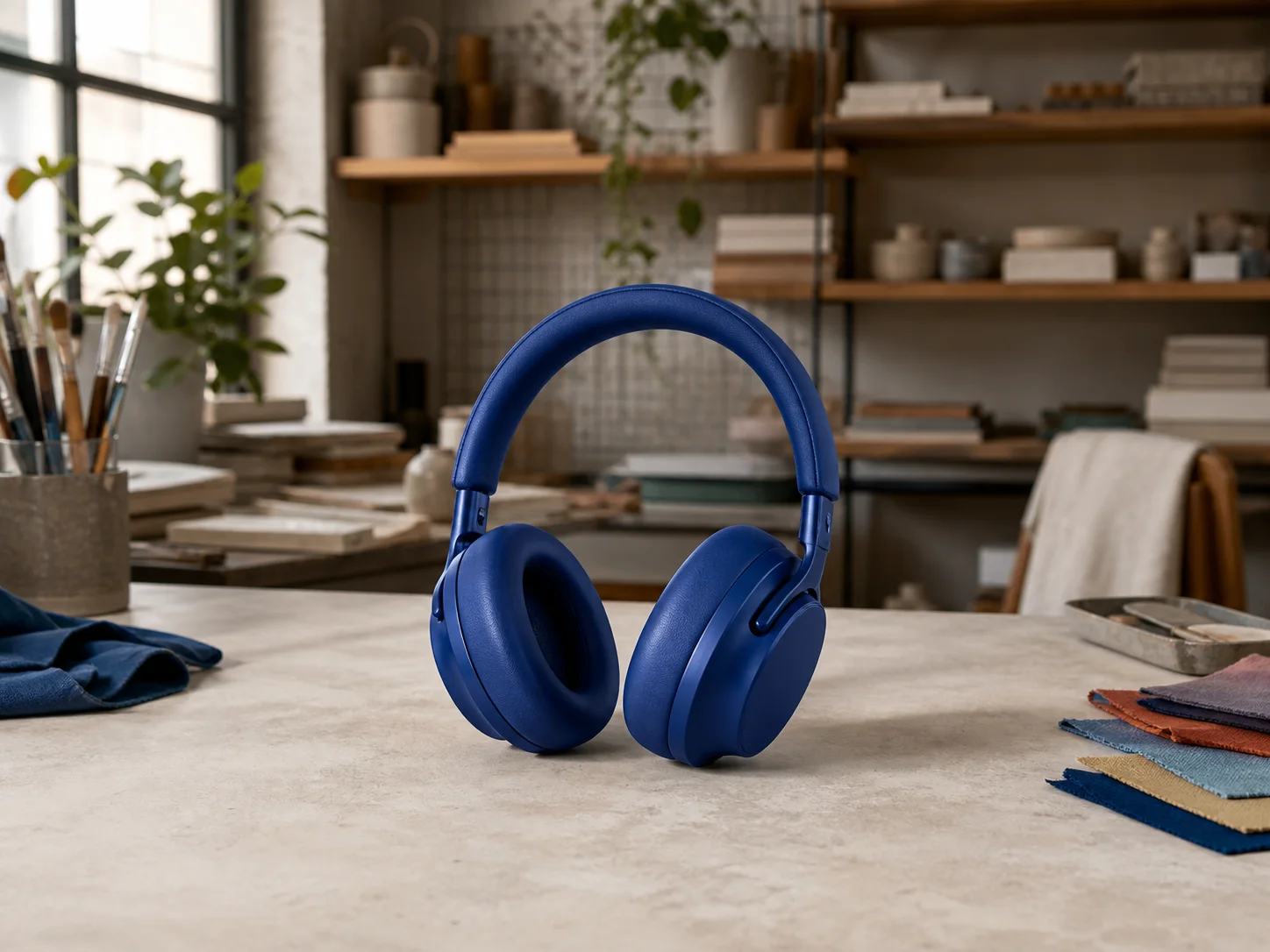
Blue headphones isolated on a clean light ecommerce background
Blue headphones photographed on a busy creative studio workbench
BeforeAfter
Product cleanupBackground cleared

Give product photos a clean studio-ready finish

Separate the subject from a distracting scene and prepare a clean product photo for an online store, marketplace listing, presentation, or social post.
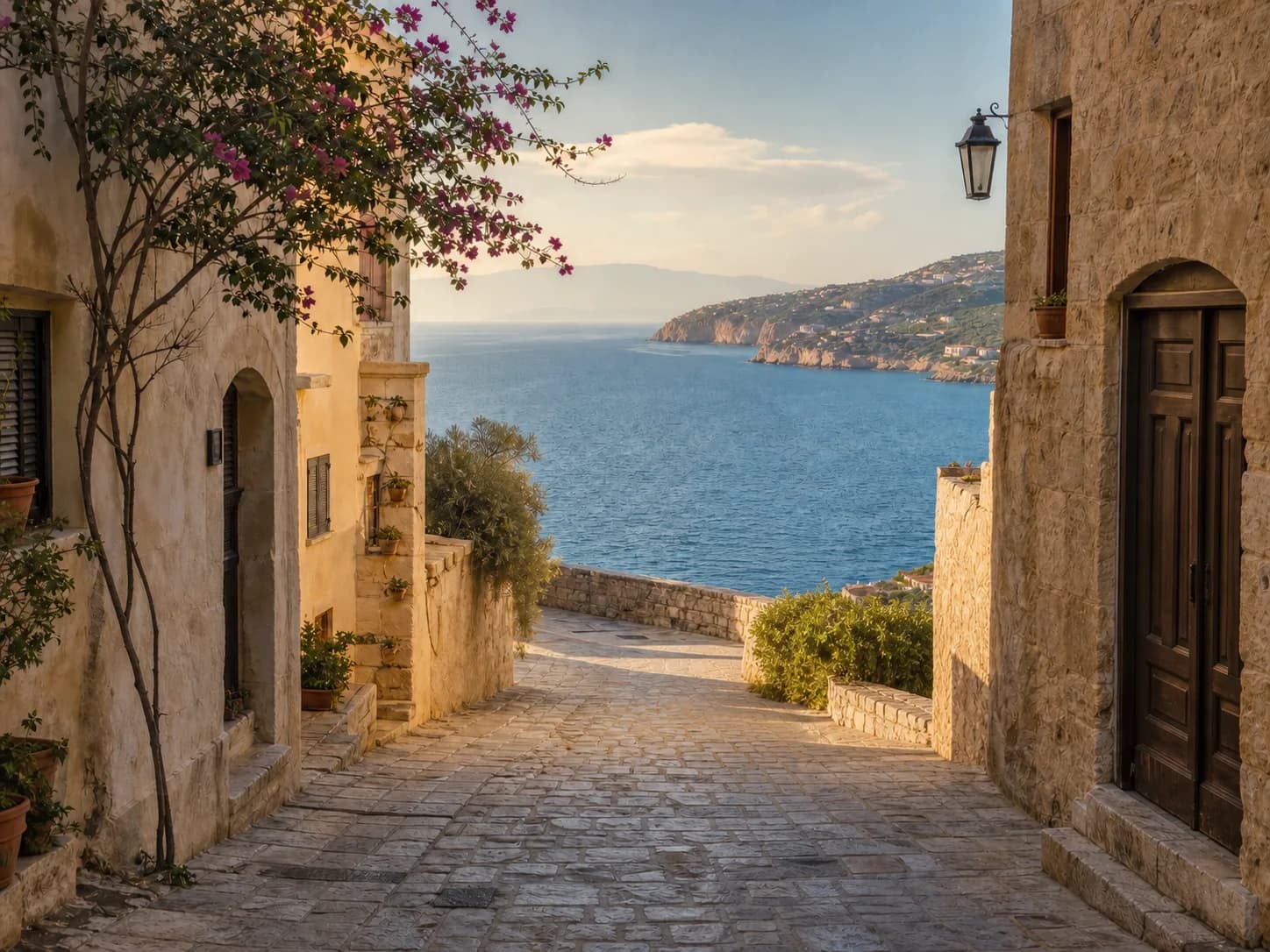
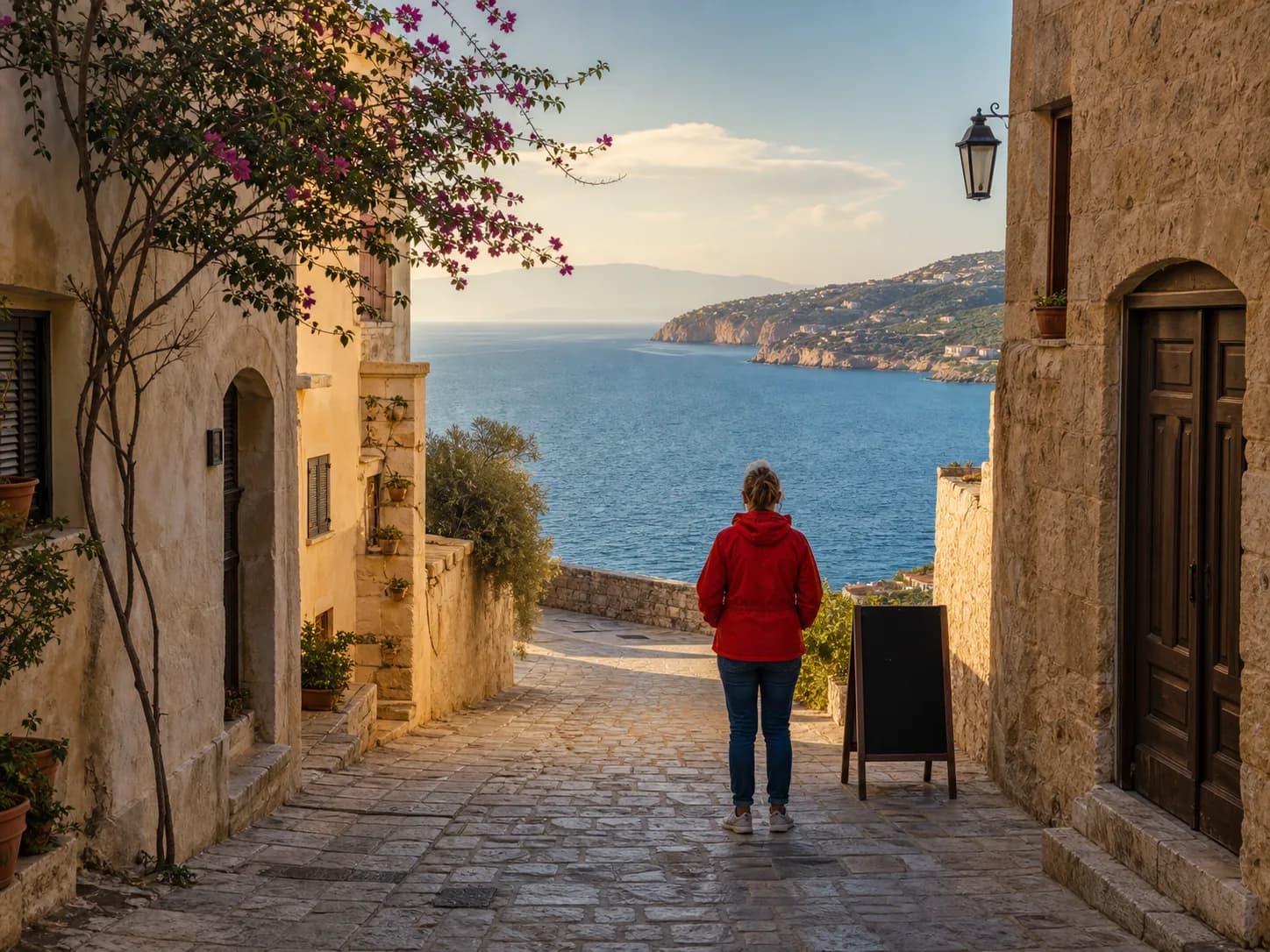
Mediterranean lane after the tourist and sign were removed
Mediterranean lane with a tourist and black sign blocking the sea view
BeforeAfter
Scene cleanupScene restored

Restore travel scenes without losing the moment

Erase a photobomber or tourist, then reconstruct architecture, pavement, water, and landscape detail so the original composition still feels natural.
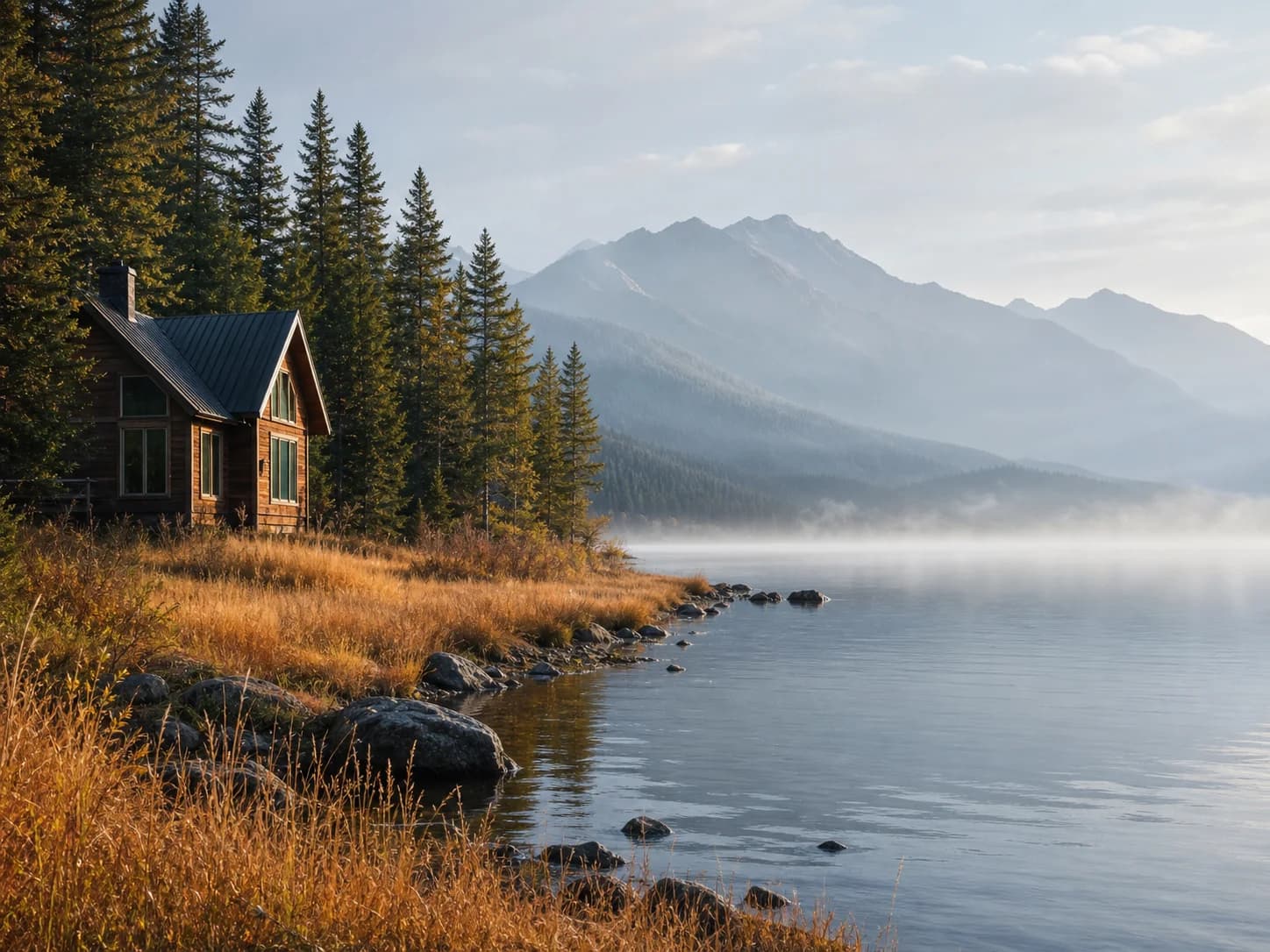
Clean autumn lakeside cabin photo without the generic overlay
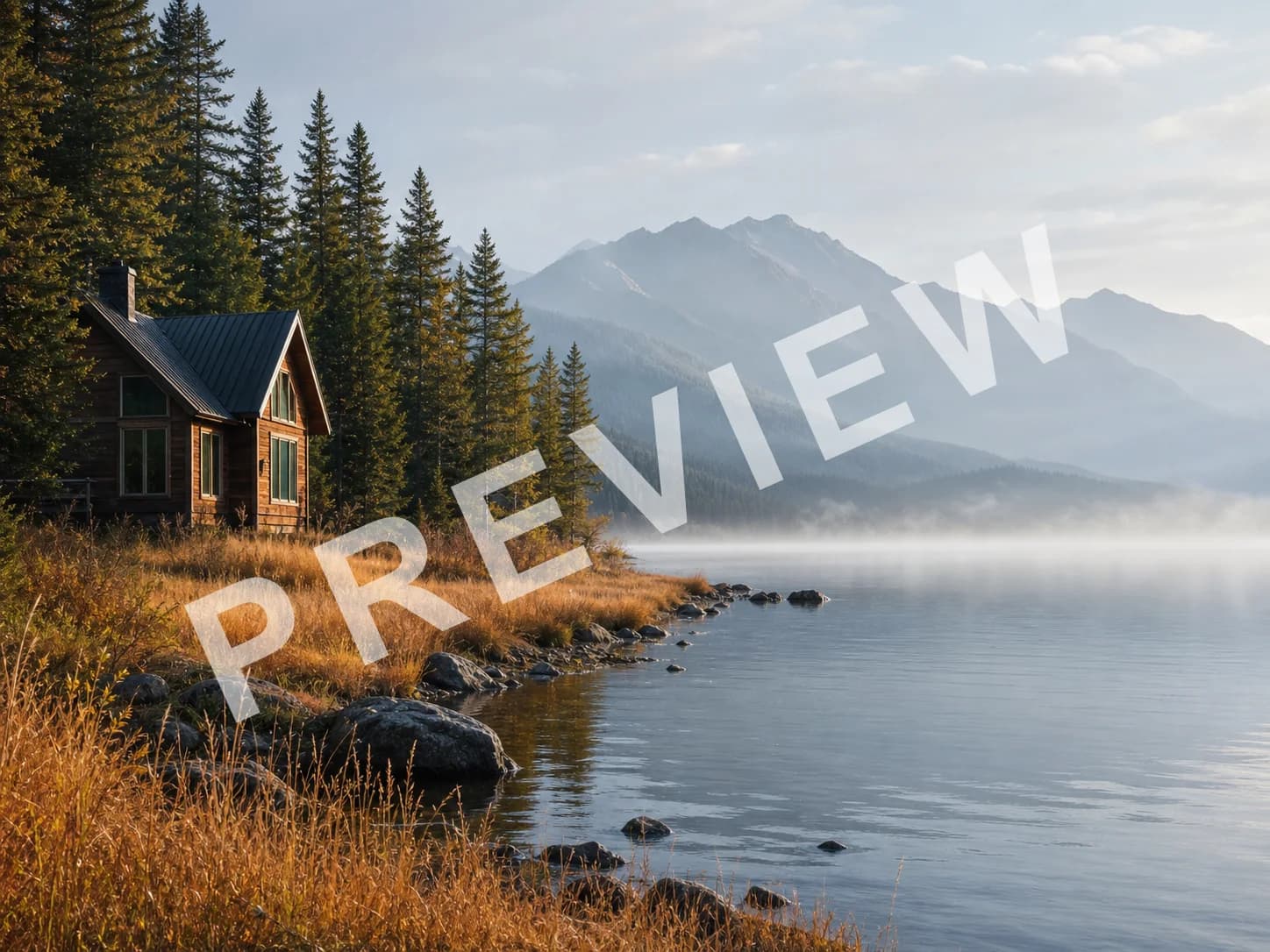
Autumn lakeside cabin photo with a large generic Preview watermark
BeforeAfter
Detail reconstructionOverlay removed

Clear an authorized overlay while preserving fine detail

Clean a generic overlay from a photo you are authorized to edit while retaining trees, mist, reflections, texture, and the original color grade.
Brunch photograph after the headline and timestamp were removed
Brunch photograph with Weekend Brunch headline and time text over the image
BeforeAfter
Text cleanupText erased

Clean captions, dates, and text from an image

Remove a headline and timestamp without rebuilding the full design. The surrounding food, ceramics, fabric, shadows, and composition remain intact.
Clean coffee product photo after the fictional logo was removed
Coffee product photo with a fictional Nova logo in the upper-left corner
BeforeAfter
Asset cleanupLogo cleared

Prepare an authorized asset for a new use

Clear an unwanted corner logo from product photography and marketing assets while preserving lighting, reflections, surfaces, and the underlying scene.
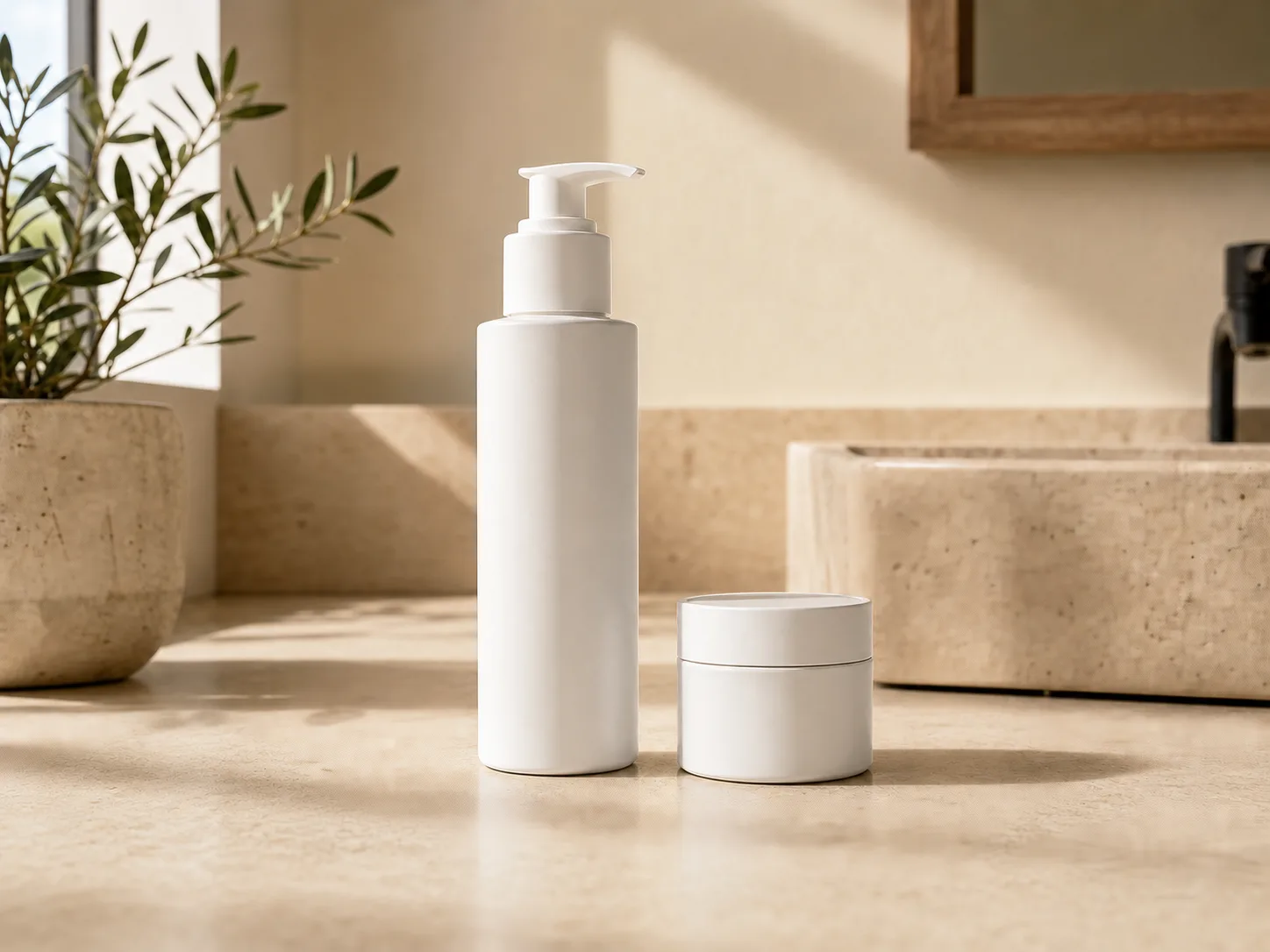
Clean skincare product photo after distracting objects were removed
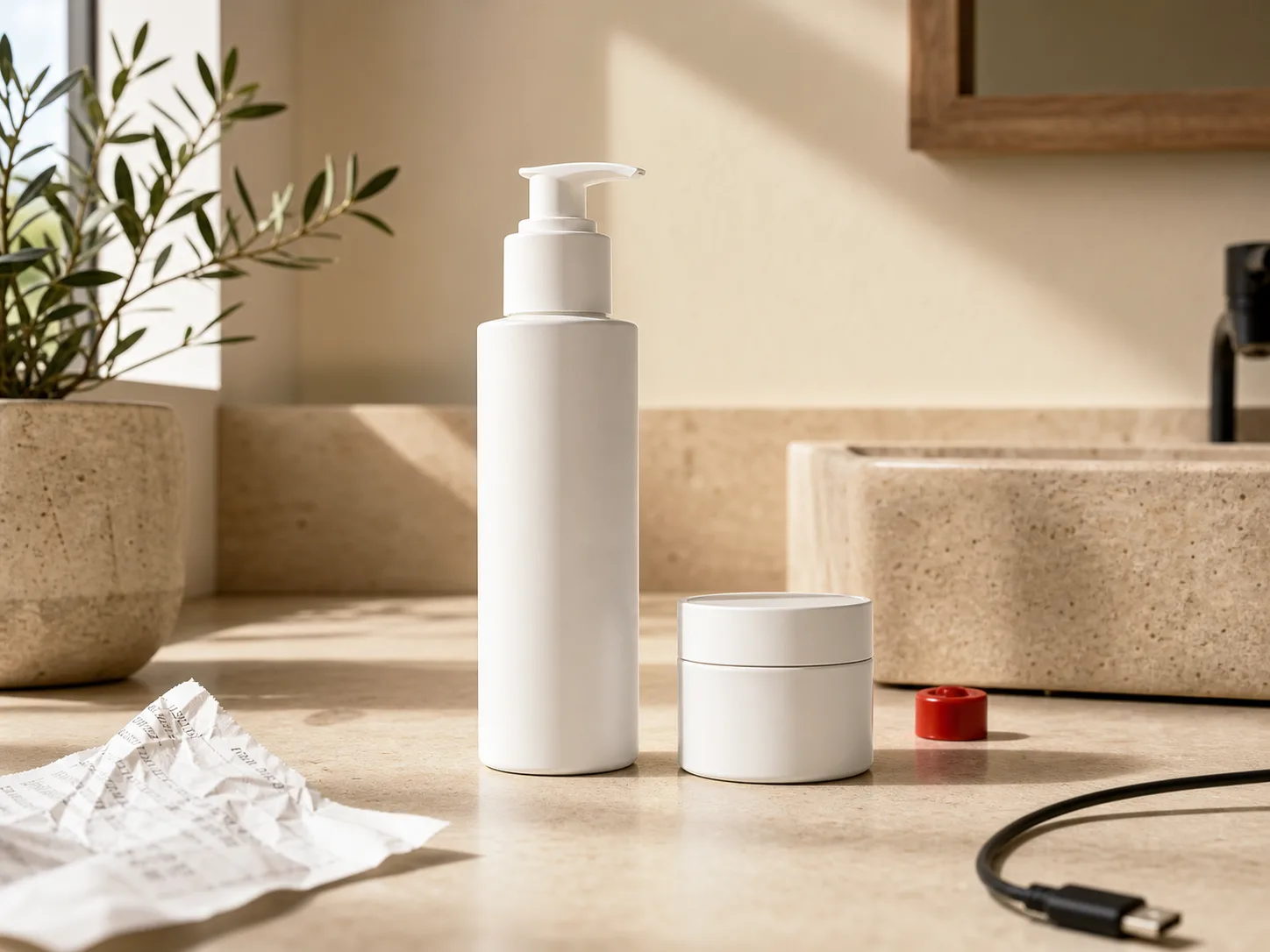
Unedited skincare product photo with a receipt, cable, and red cap on the counter
BeforeAfter
AI photo cleanupObjects removed

Clean distracting objects from a product photo

Use a focused AI photo editor to remove loose packaging, cables, and small props while keeping the product, lighting, and surface texture intact.
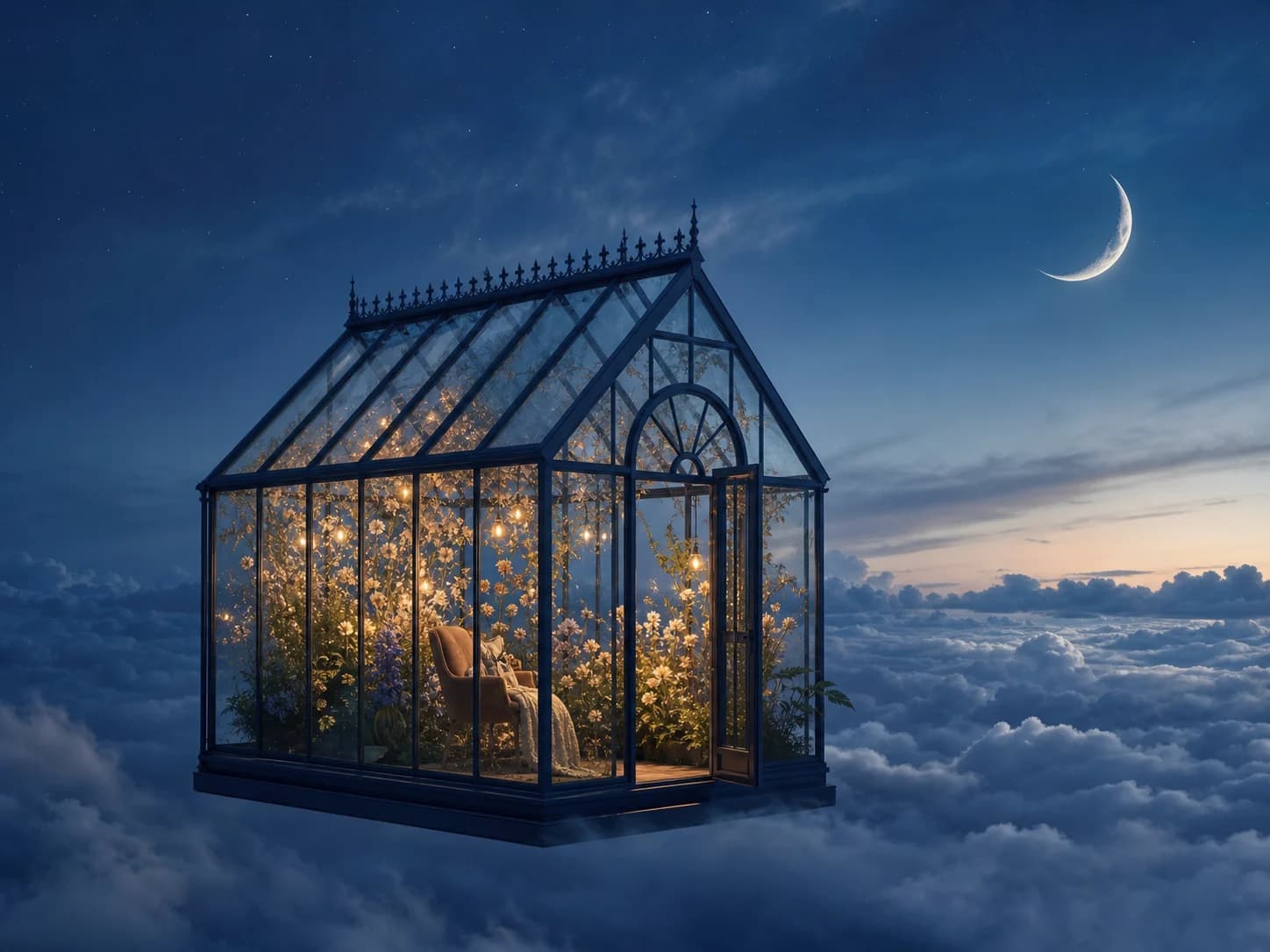
AI-generated glass greenhouse floating above clouds at blue hour
Example promptA midnight-blue glass greenhouse floating above a sea of clouds, filled with luminous wildflowers at blue hour.
Pixmage generationCreated from text

Create an original image from an editable text prompt

Start from a visual example, replace the subject or setting in its structured prompt, and generate a new image without facing a blank prompt box.
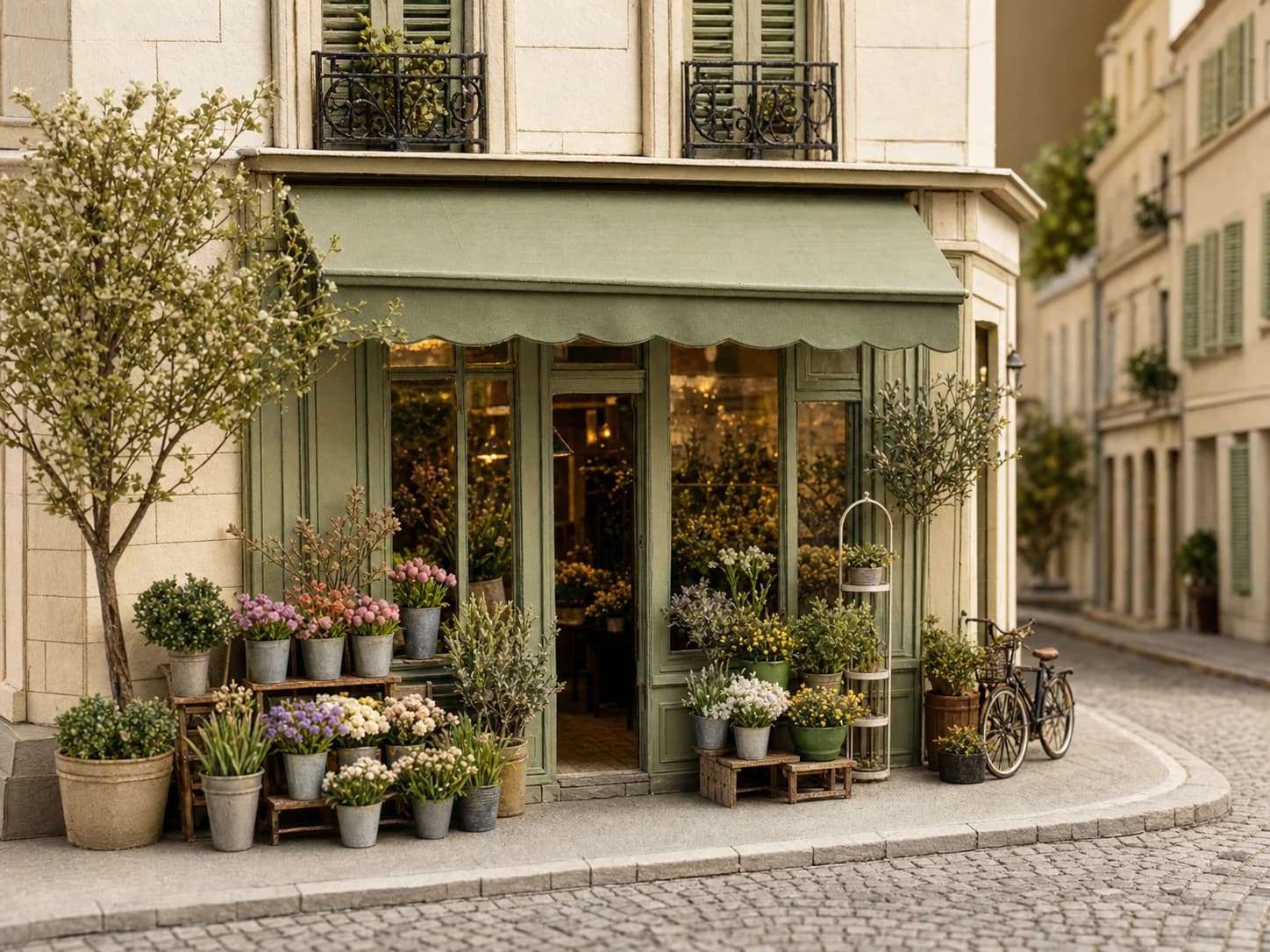
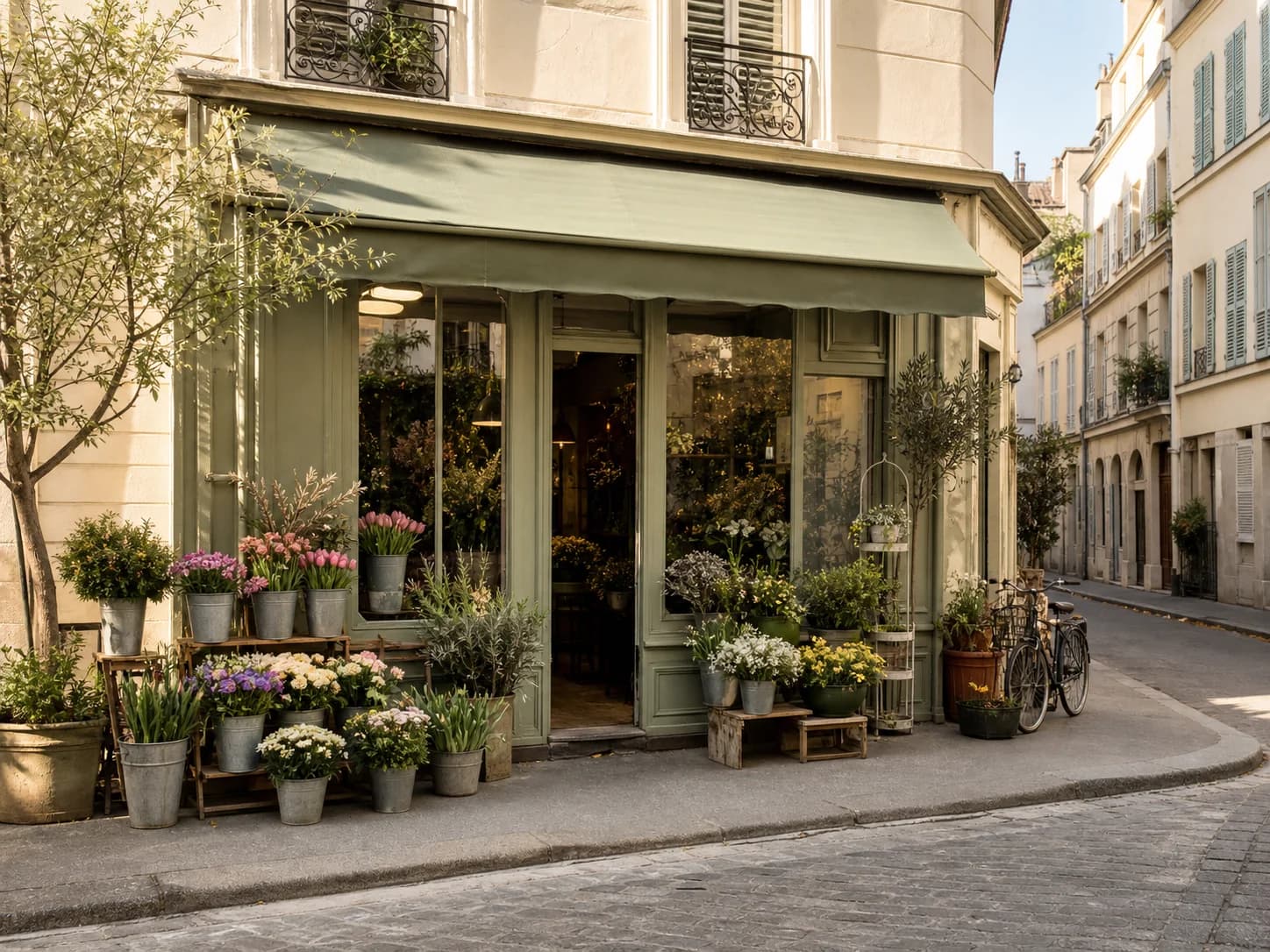
Flower shop transformed into a handcrafted architectural miniature effect
Photograph of a flower shop on a quiet European-style street
BeforeAfter
Pixmage effectsStyle transformed

Turn a source photo into a new visual effect

Upload a photo, choose a curated effect, and create a recognizable new version that preserves the subject while changing its material, medium, or art direction.

How does Pixmage AI image editing work?

A short workflow with the tool, cost, and result visible before you commit.
1
Choose a tool and uploadSelect background, watermark, logo, text, or person removal, then add a JPG, PNG, WebP, or GIF up to 15MB.
2
Review the model and costYou get two complimentary cleanup runs shared across all cleanup tools. Later runs show the required credits before processing starts.
3
Process, compare, and downloadReview the before-and-after result, download the finished image, or try again with another source.

Pixmage FAQ

The important details about free trials, accounts, privacy, credits, files, and image rights.

You can complete two complimentary cleanup runs in total across Remove Background, Remove Watermark, Remove Logo, Remove Text, and Remove Person without signing in. Additional cleanup requires a verified account and credits. AI Image Generator, AI Video Generator, and Photo Effects require sign-in and email verification from the start.

Start your next visual with Pixmage

Choose a focused cleanup tool, use one of your two complimentary runs, and move from a distracting source photo to a cleaner result.