Erase stock watermarks, timestamps, and semi-transparent overlays without smudging the background. Pixmage uses AI inpainting to rebuild textures behind removed marks.
BeforeAfter
Example · Before / after
AI cleanup examples
Remove the distraction, keep the details that make the image work
Compare common cleanup workflows below. Pixmage is designed to preserve the subject, composition, lighting, and surrounding texture while reconstructing only the area that needs attention.
BeforeAfter
Watermark removalRelevant to this tool
Recover detail beneath an overlay
Remove a translucent overlay from content you own or are licensed to edit, then reconstruct the hidden detail naturally.
BeforeAfter
Background removal
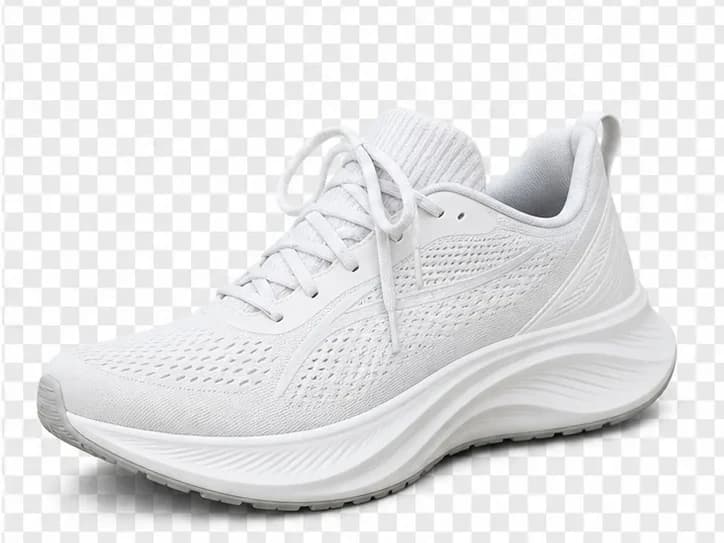
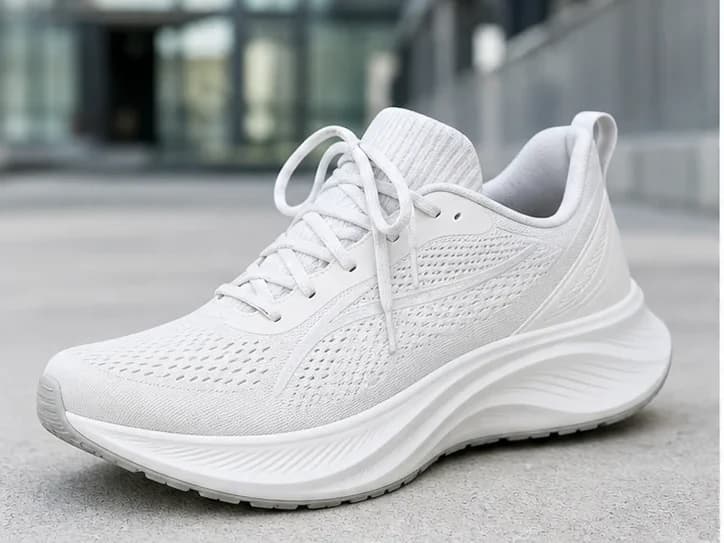
Create a clean product cutout
Separate a product from a busy scene while preserving its shape, texture, laces, and fine edges.
BeforeAfter
Person removal
Rebuild the scene behind a distraction
Remove a photobomber or passerby and reconstruct architecture, ground texture, perspective, and shadows.
BeforeAfter
Text and logo removal
Clean up authorized product artwork
Erase a printed mark while keeping packaging folds, highlights, material texture, and the surrounding set intact.
How it works
4 steps from start to download.
Step 1Upload your imageJPG, PNG, WebP, or GIF up to 15MB. Drag and drop or click to browse.
Step 2Start watermark removalOur model detects overlay patterns and fills the area naturally.
Step 3Preview the resultCheck edges and fine details before downloading.
Step 4Download your clean imageSave at the same resolution whenever possible.
FAQ
Can Pixmage remove any watermark?It works best on semi-transparent or repeated overlays. Very large watermarks covering most of the image may need a second pass or manual touch-up.
Will quality drop after removal?We aim to preserve your original dimensions. Complex backgrounds may show minor blending — try a smaller crop if needed.
Is the first run free?Yes. Without signing in, you get two complimentary cleanup runs shared across all cleanup tools. Additional runs require an account and credits.