AI image generator for text, photo edits, and multi-image fusion

Create images from text, edit a photo with your own instructions, apply AI effects, or fuse multiple references in one workspace. Compare Seedream 5, Nano Banana, GPT Image, and FAL with credits shown before every request.

One AI image workspace

Generate, edit, and fuse images without switching tools

Pixmage keeps the prompt, model, image inputs, output settings, credits, and results in one consistent workflow. Models are shown only for tasks their APIs actually support.
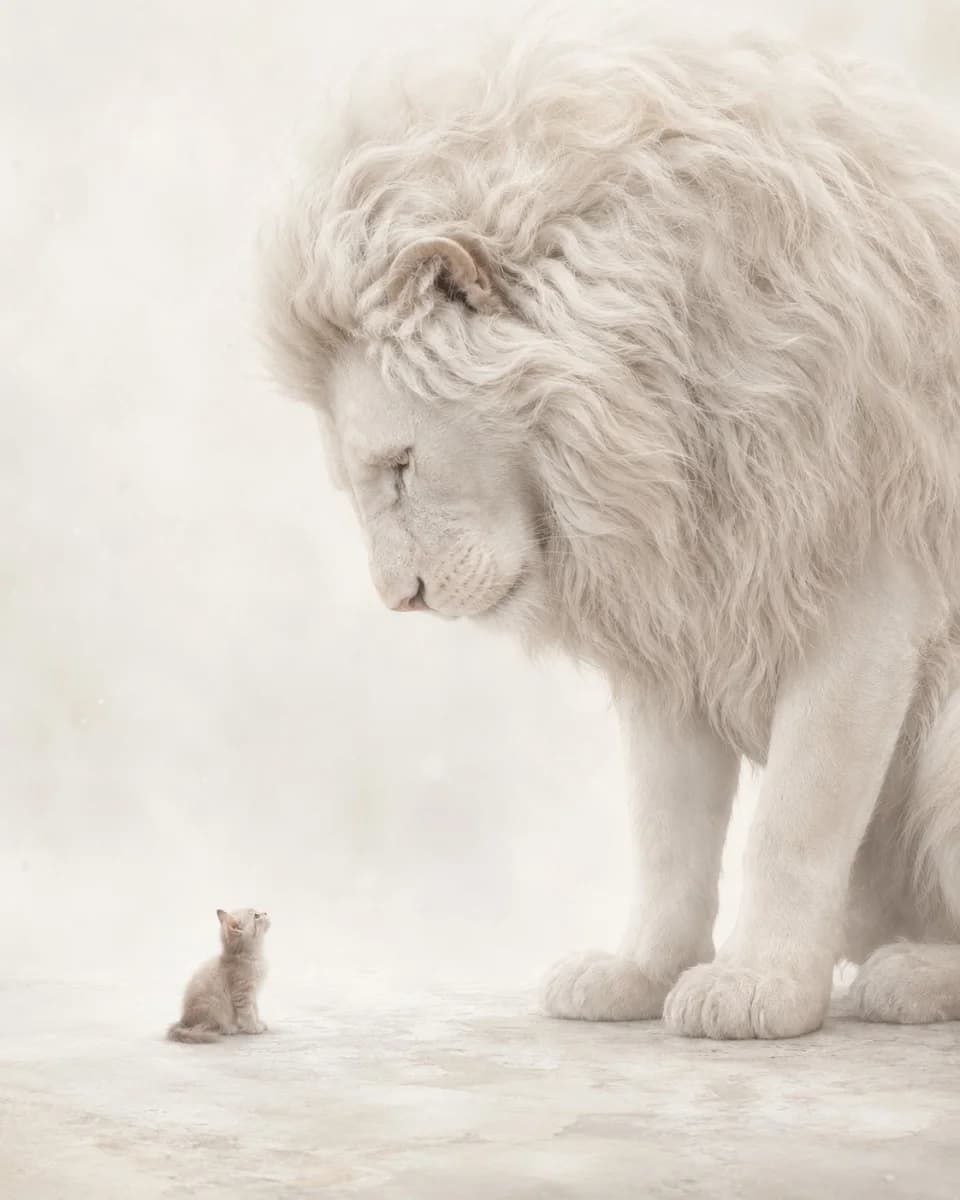
AI-generated editorial image created from a text prompt
Text to image

Start from a sentence, not a blank canvas

Write your own prompt or customize a structured example. Choose the model, aspect ratio, resolution, and quality without leaving the generator.
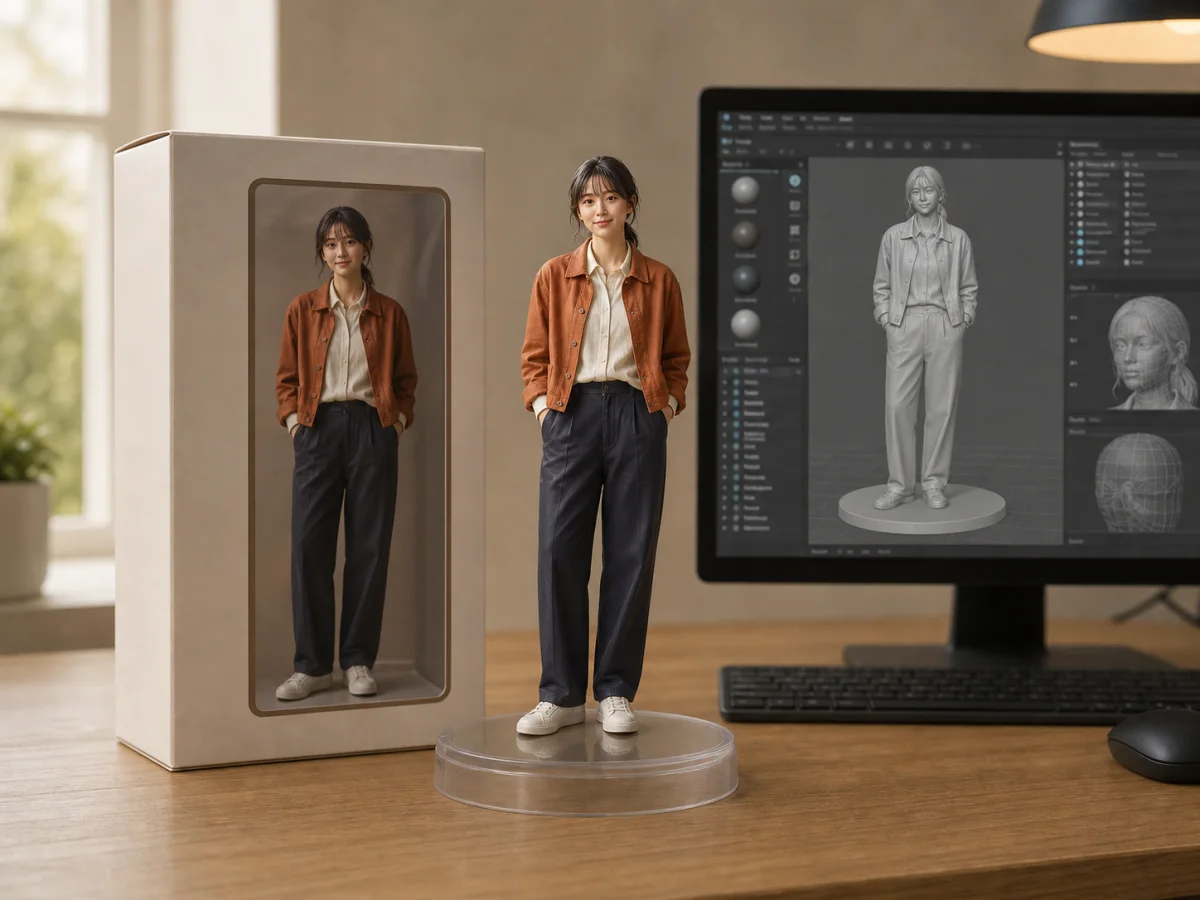
Photo transformed into a collectible figurine scene with AI
Photo edit

Make a precise change or apply a complete effect

Upload a photo, describe exactly what should change, and keep the rest intact. Optional presets give you a quick starting point while the full prompt remains editable.
Surreal AI composition demonstrating reference-aware image generation
Multi fusion

Combine people, products, and visual references

Order up to ten reference images and address them as Image 1, Image 2, and so on. Compatible models receive the complete set in one request for coherent composition and style.
Portrait after an AI risograph effect
Original portrait before AI image editing
BeforeAfter
Seedream 5 in the same workflow

Choose Lite for volume or Pro for controlled editing

Seedream 5.0 Lite is the value-oriented option for text generation, image input, multi-reference work, and grouped outputs. Seedream 5.0 Pro focuses on precise prompt-driven edits and controlled production. Both use the same uploader, prompt editor, output controls, and credit checkout as every other compatible model.
  • Text-to-image and image-to-image
  • Up to 10 ordered references
  • Editable full-length prompts
  • Credits shown before generation
Made with the workspace

One prompt can become a product shot, campaign, edit, or complete world

These original examples show the range of the same workspace above. Start with text, upload one photo for a controlled edit, or combine several ordered references into a coherent result.
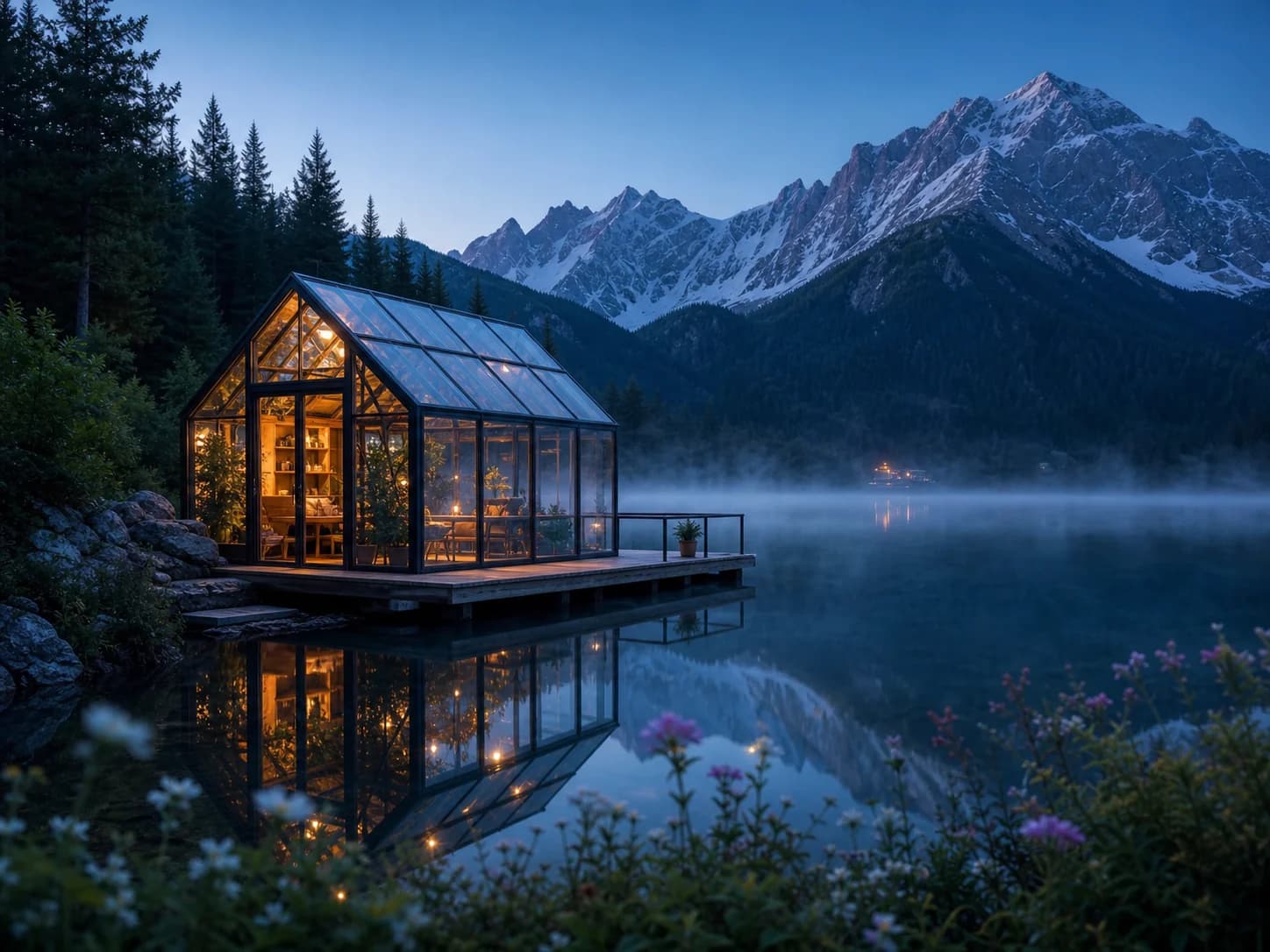
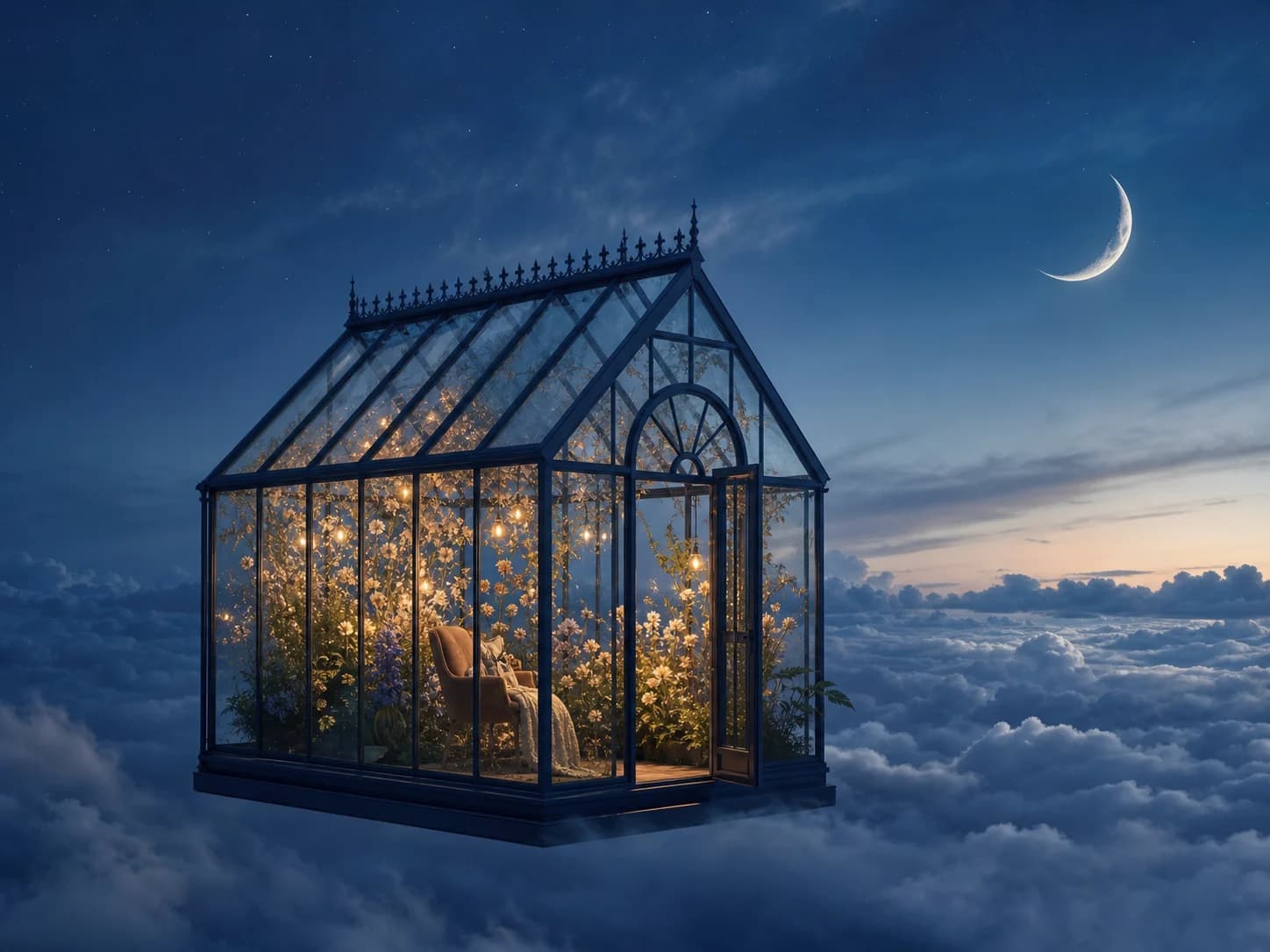
AI-generated glasshouse beside an alpine lake at blue hour
Text to image

Turn atmosphere into a finished scene

Describe the place, lighting, mood, and camera language to create a polished editorial image from scratch.
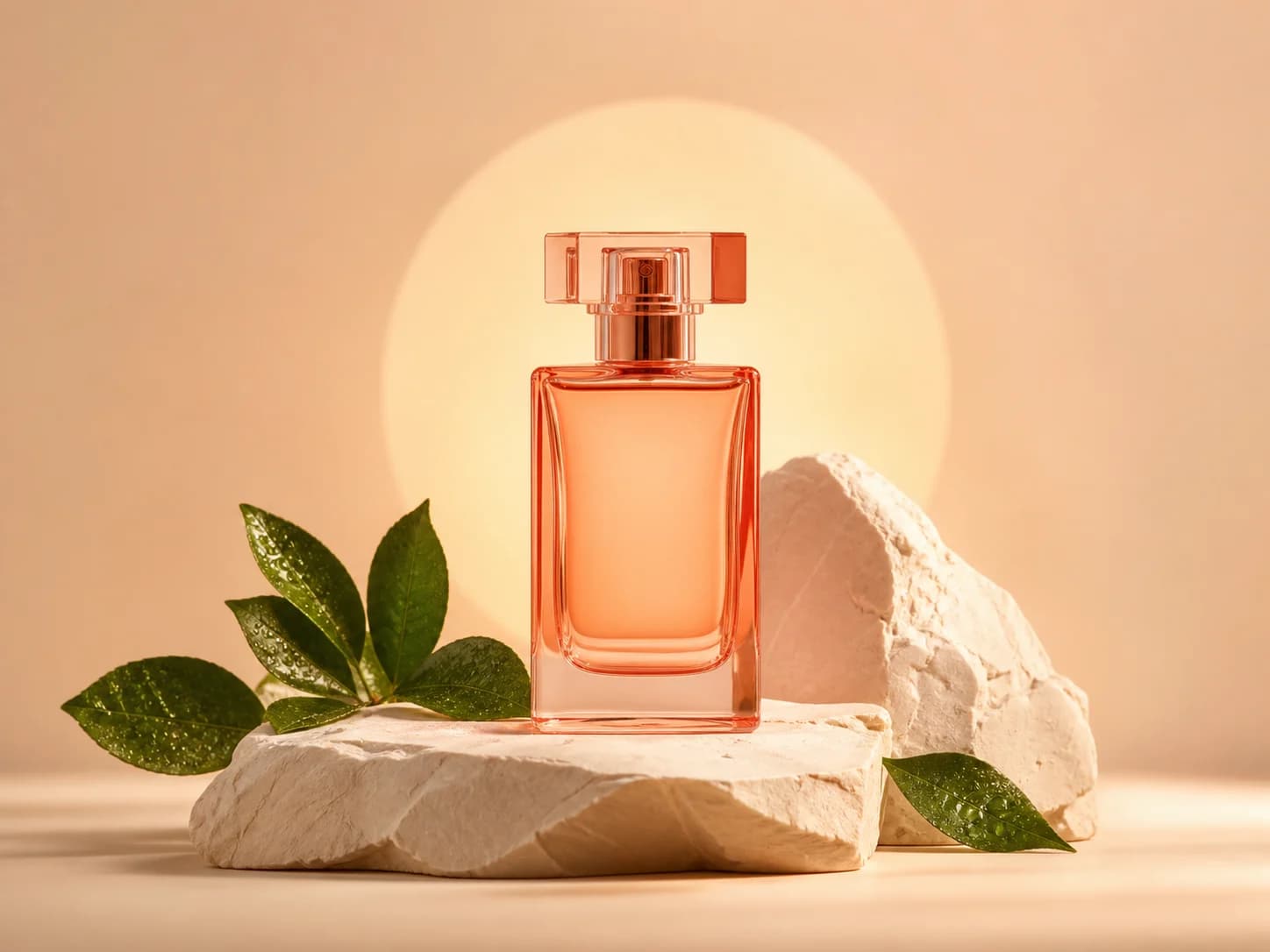
AI-generated coral perfume bottle in a warm studio scene
Product imagery

Build campaign-ready product visuals

Generate clean studio compositions with controlled materials, reflections, shadows, and color direction.
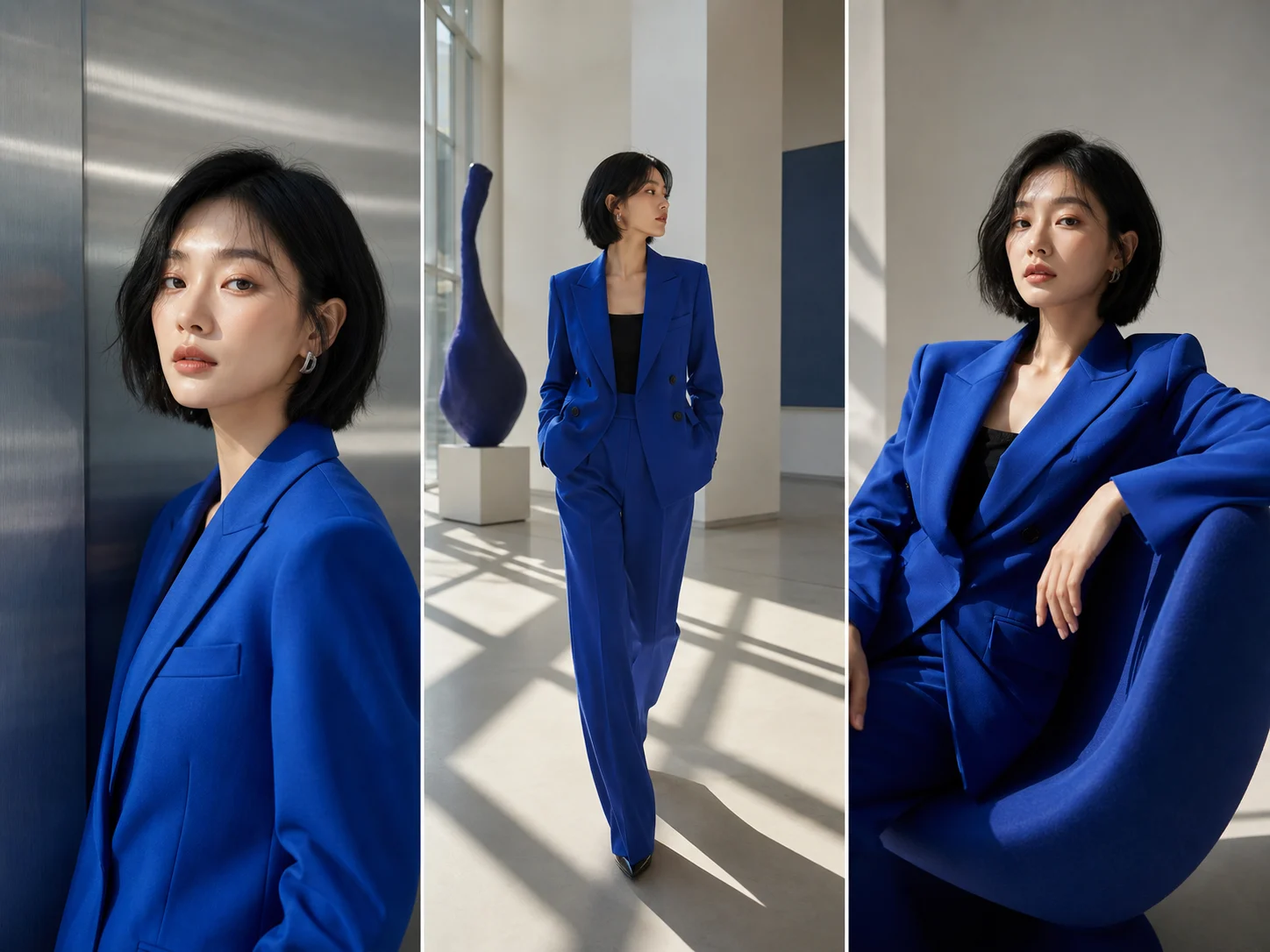
Three consistent AI fashion portraits of the same fictional model
Character consistency

Keep one character coherent across a series

Use references and detailed prompts to maintain a consistent face, wardrobe, palette, and campaign mood.
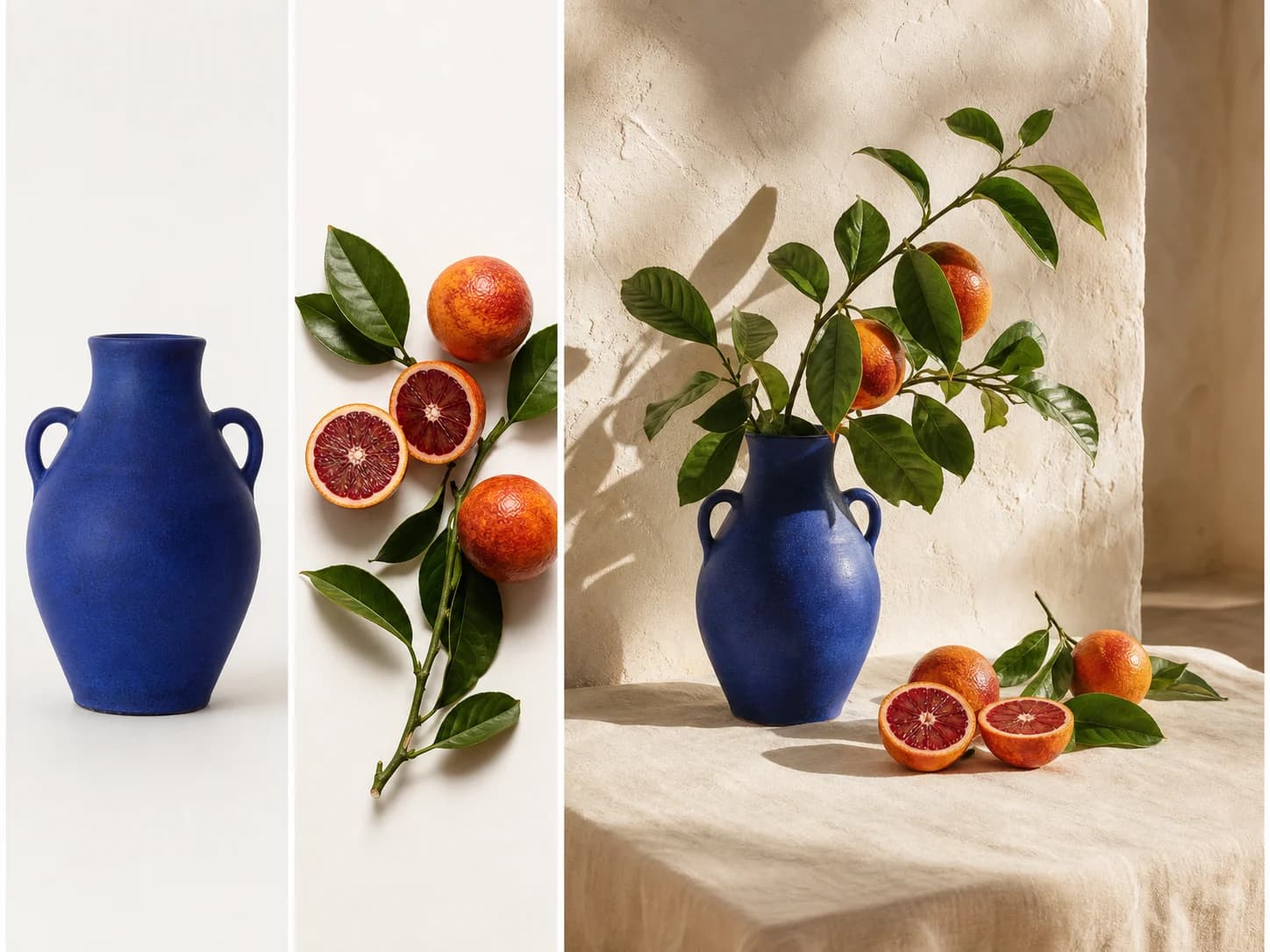
Multi-reference AI fusion of a cobalt vase and blood oranges
Multi-image fusion

Combine separate references into one composition

Bring products, props, colors, and visual references together while preserving the details that matter.
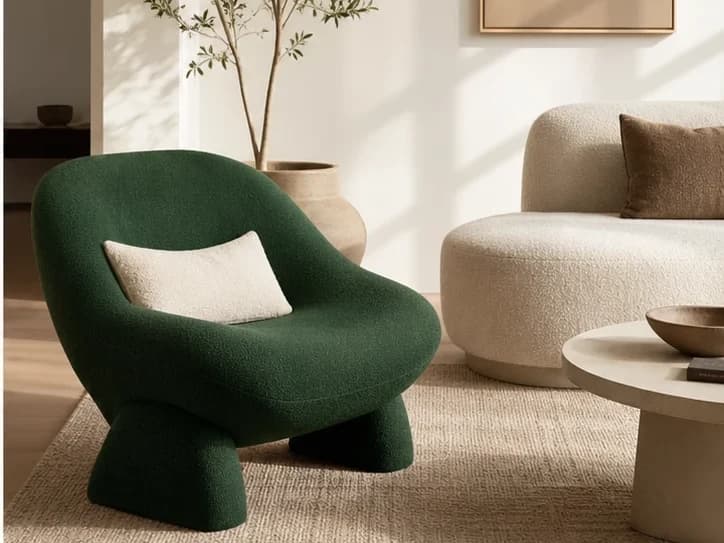
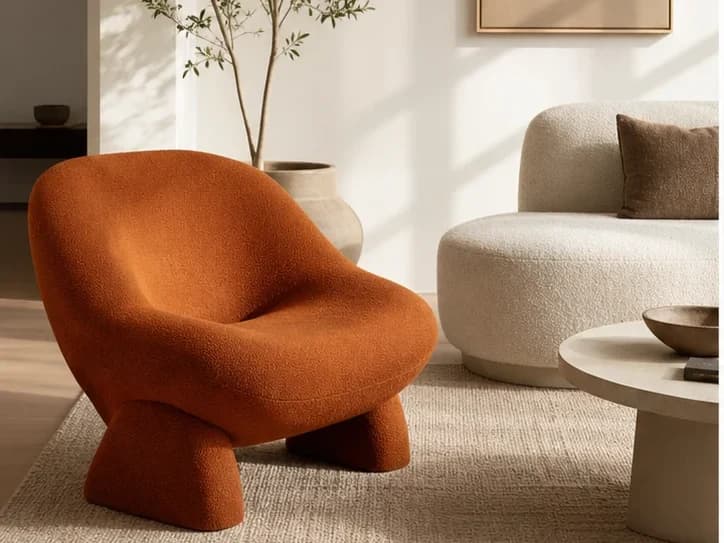
Green chair after AI editing
Original orange chair before AI editing
BeforeAfter
Precise editing

Change one detail while preserving the scene

Give a direct edit instruction and keep the surrounding room, light, camera angle, and textures coherent.
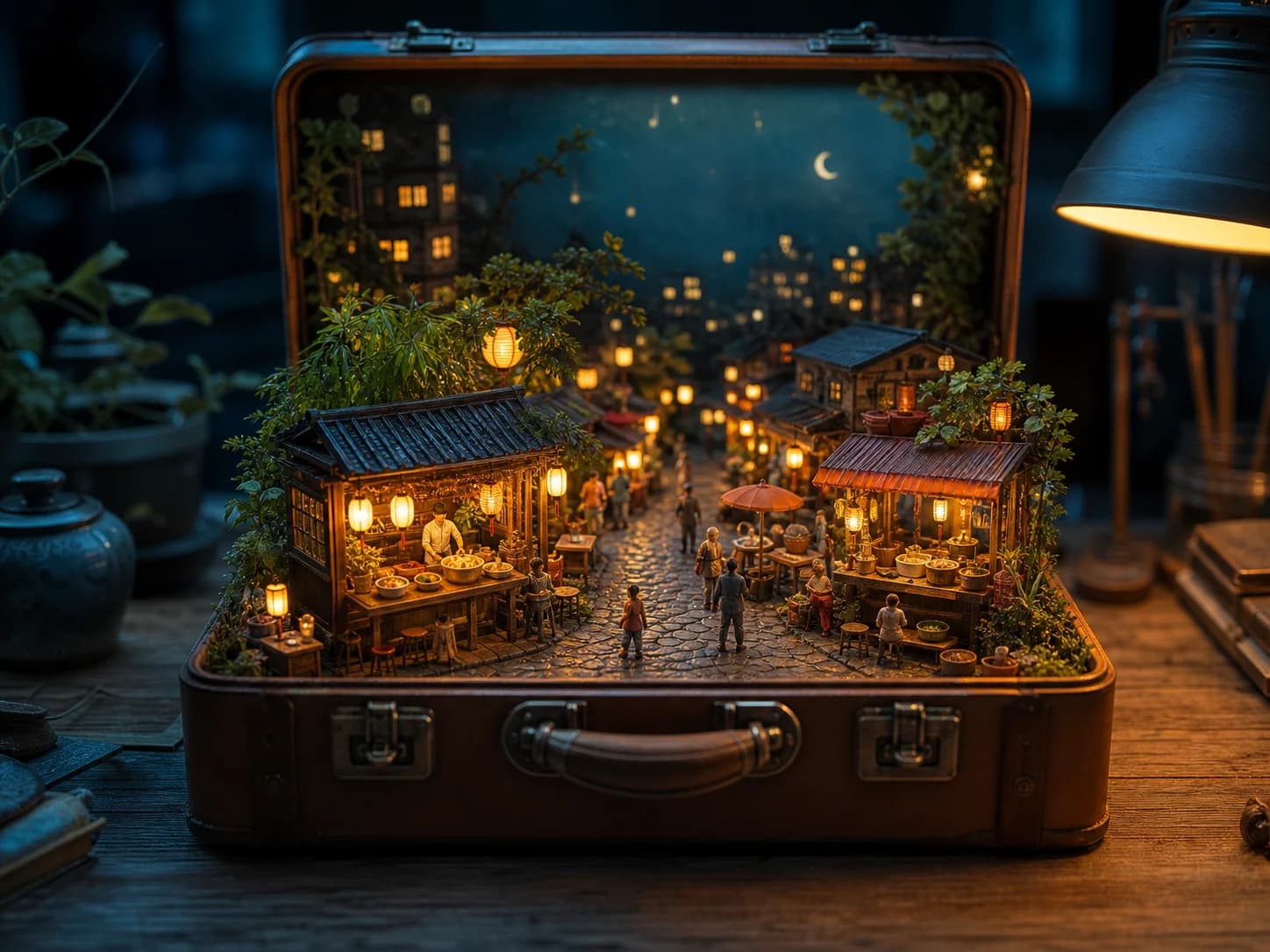
AI-generated miniature night market inside a vintage suitcase
Creative concepts

Prototype imaginative ideas in minutes

Move from a compact concept to a richly detailed visual for campaigns, stories, pitches, and inspiration.
How it works

5 steps from start to download.
  1. Step 1Sign in and add creditsGeneration is a premium feature on the credit system.
  2. Step 2Choose a creation modeSwitch between text to image, photo editing, and multi-image fusion in the same workspace.
  3. Step 3Choose a compatible modelCompare Seedream, Nano Banana, GPT Image, and FAL options with resolution-aware credits.
  4. Step 4Write or customize the promptKeep the full prompt open, use a preset, or enter your own detailed instruction.
  5. Step 5Generate and continue editingDownload every output or send a result straight back into photo editing.

FAQ

Do I need an account?Yes. AI image generation requires sign-in and a credit balance.
Can I use outputs commercially?Check your plan terms and local laws. Pixmage does not provide legal advice on usage rights.
Which models support multiple input images?Seedream 5, Nano Banana, and GPT Image can receive multiple ordered references in the multi-fusion mode. FAL Flux remains available for text-to-image generation only.
What is the difference between Seedream Lite and Pro?Lite is the lower-cost choice for generation, image input, multi-reference workflows, and grouped outputs. Pro is positioned for more controlled prompt-based image editing.