Clean promotional photos, screenshots, and repurposed assets by erasing logos while keeping surrounding detail intact.
BeforeAfter
Example · Before / after
AI cleanup examples
Remove the distraction, keep the details that make the image work
Compare common cleanup workflows below. Pixmage is designed to preserve the subject, composition, lighting, and surrounding texture while reconstructing only the area that needs attention.
BeforeAfter
Text and logo removalRelevant to this tool
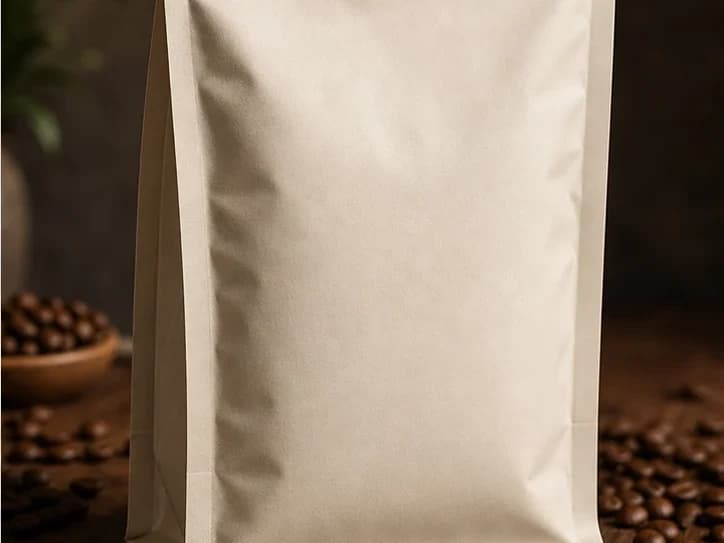
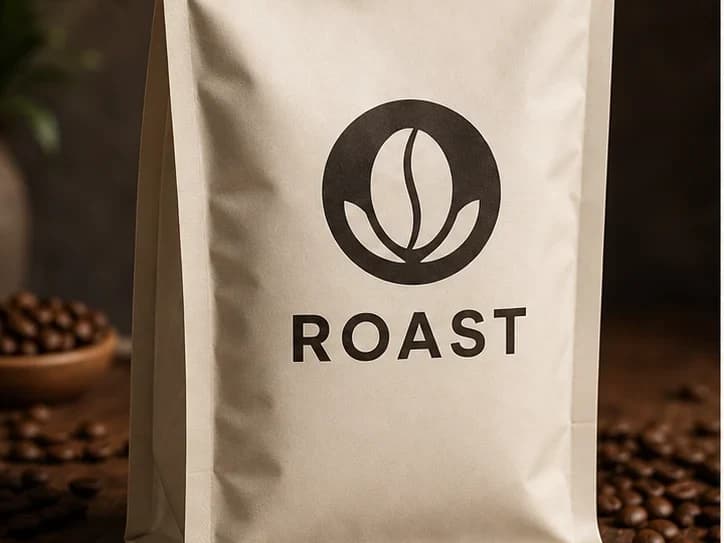
Clean up authorized product artwork
Erase a printed mark while keeping packaging folds, highlights, material texture, and the surrounding set intact.
BeforeAfter
Background removal
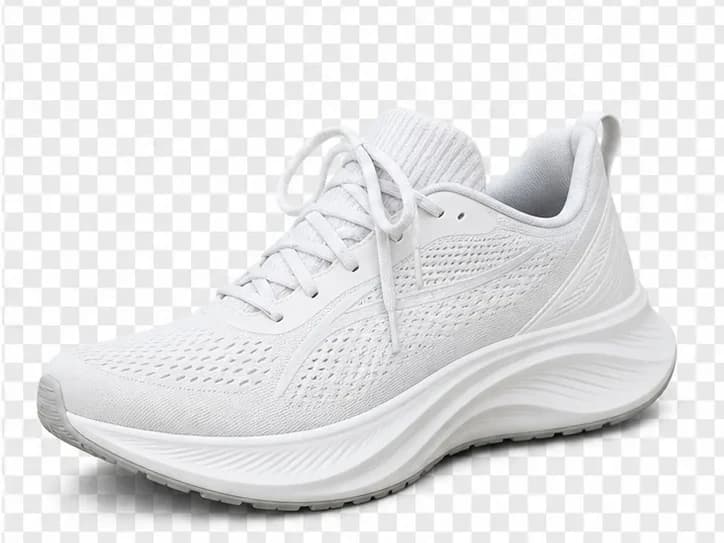
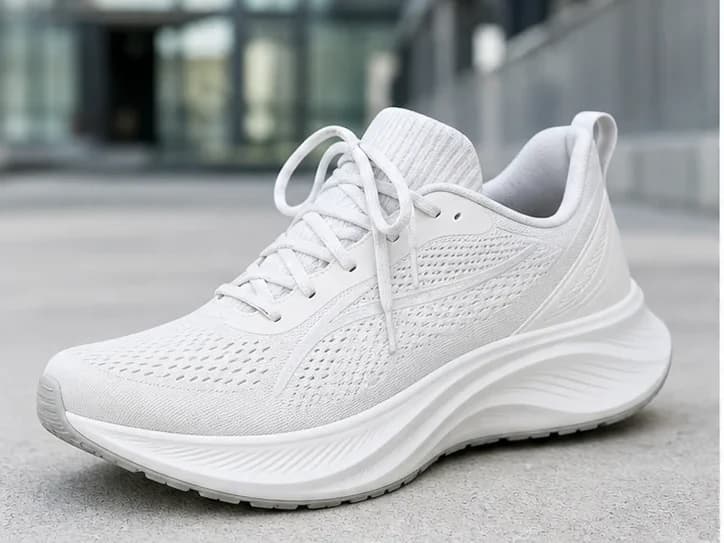
Create a clean product cutout
Separate a product from a busy scene while preserving its shape, texture, laces, and fine edges.
BeforeAfter
Person removal
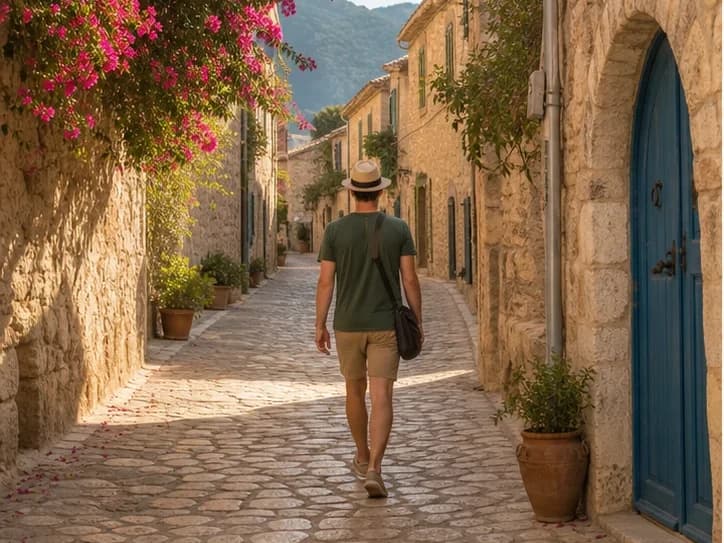
Rebuild the scene behind a distraction
Remove a photobomber or passerby and reconstruct architecture, ground texture, perspective, and shadows.
BeforeAfter
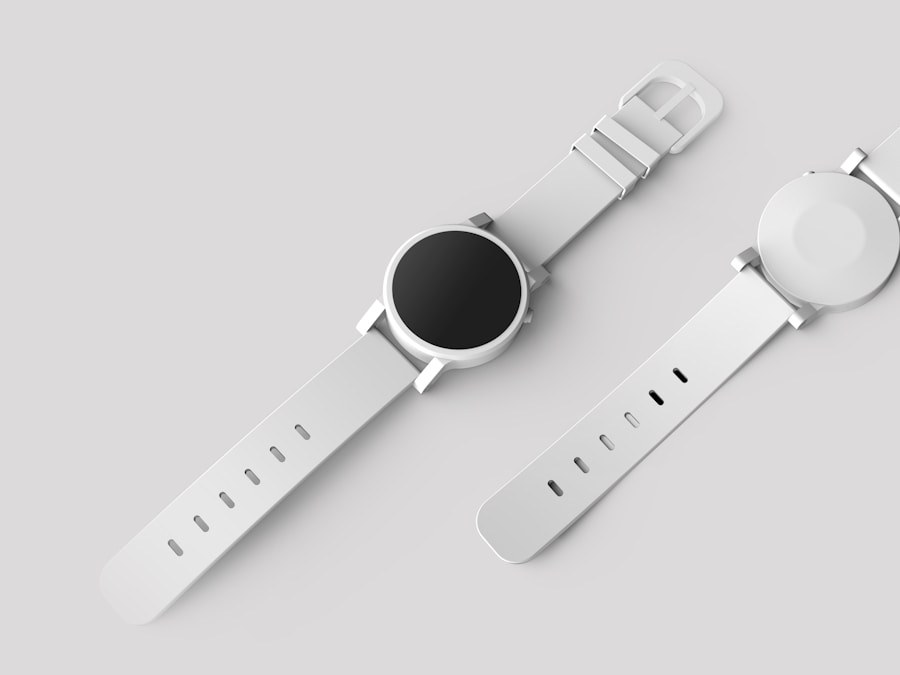
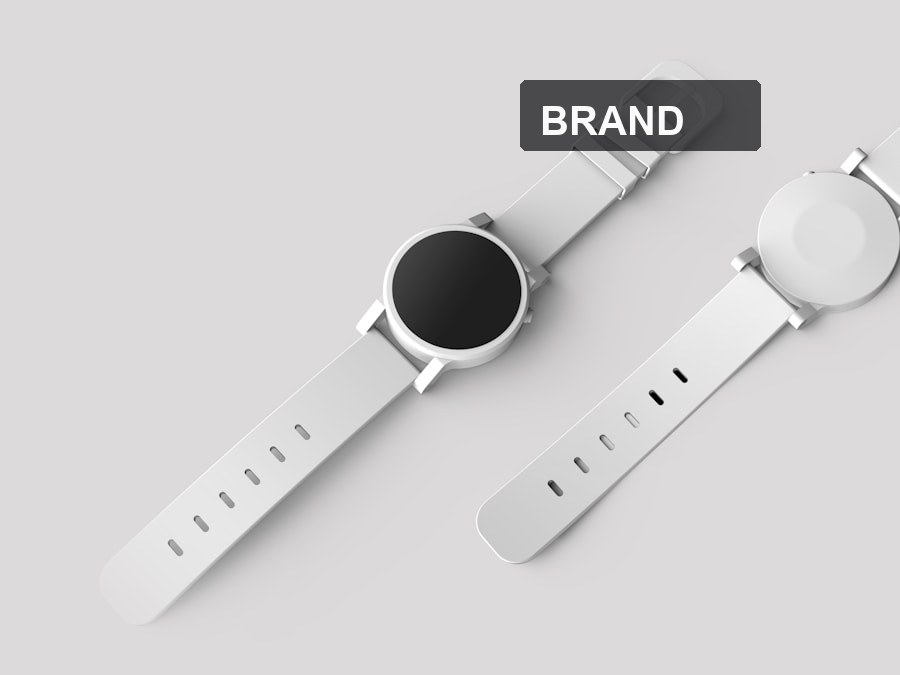
Watermark removal
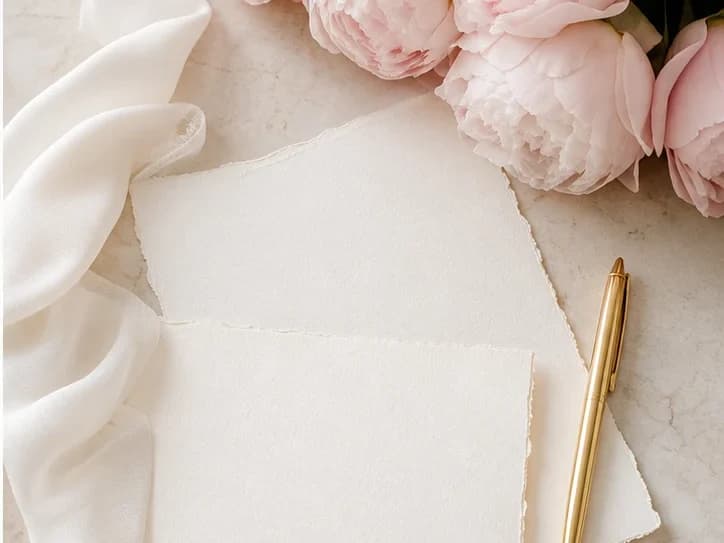
Recover detail beneath an overlay
Remove a translucent overlay from content you own or are licensed to edit, then reconstruct the hidden detail naturally.
How it works
4 steps from start to download.
Step 1Upload the imageWorks on corners, centers, and repeated brand marks.
Step 2Process with logo removalAI targets graphic marks and reconstructs the area behind them.
Step 3Inspect edgesZoom in on corners and text-adjacent areas.
Step 4ExportDownload when you are happy with the fill.
FAQ
Is it only for corner logos?No — center watermarks, badges, and stickers can be removed too.
Can I use this for client work?Only if you have rights to edit the source image. Pixmage does not grant copyright clearance.
How many credits does it cost?One credit per run after your free trial.